
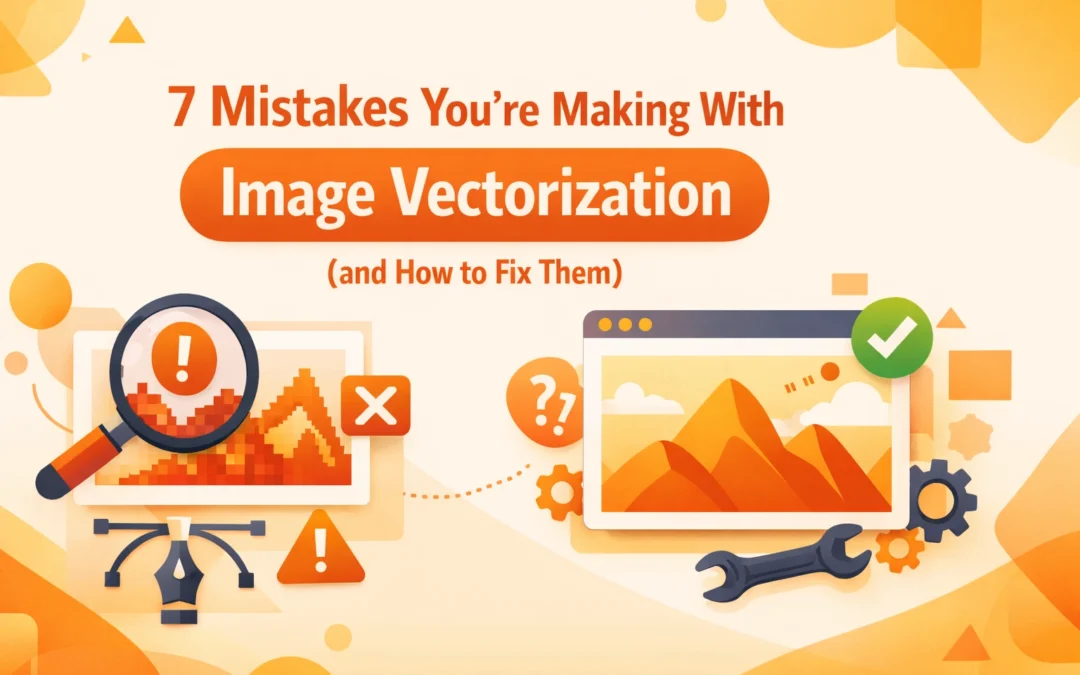
Vectorization serves as the foundation for professional graphic design and print production. The process of converting raster pixels into mathematical paths allows for infinite scalability without loss of quality. This is essential for various applications including large format banners, apparel printing, and corporate branding. However, many designers and production artists fall into common traps that lead to subpar results, inefficient files, and production delays. Understanding these technical hurdles is necessary for anyone working with Adobe Creative Cloud, Affinity Designer, or specialized RIP software.
1. Starting With Low-Resolution Source Material
A common misconception is that vectorization can magically fix a poor-quality image. If you begin with a 72 DPI web thumbnail, the software lacks sufficient data to interpret edge definitions. This often results in jagged paths and distorted shapes that require hours of manual correction. The tracing algorithm attempts to guess where a line should be, but with low pixel density, the "staircase" effect of aliasing becomes baked into the vector geometry.
To fix this, always source high-resolution raster files. If you are scanning hand-drawn sketches, ensure the scanner is set to at least 300 DPI, though 600 DPI is preferred for intricate work. When professional Photo Editing is not enough to save a file, you must request a higher-quality original from the client. High-contrast images with clear boundaries provide the best results for both manual and automated tracing.
2. Excessive Reliance on Auto-Trace Features
Adobe Illustrator and Affinity Designer offer powerful automated tracing tools. While these features are convenient, relying on them without manual intervention is a significant professional error. Auto-trace tools often interpret noise or subtle gradients as complex shapes. This leads to an "organic" look that is usually undesirable for clean Logo Design. The resulting file may look acceptable from a distance, but a close inspection reveals irregular edges and overlapping paths that complicate the printing process.
The solution is to use auto-trace as a preliminary step rather than a final solution. Once the software generates the initial paths, use the Pen Tool or the Smooth Tool to refine the geometry. For high-stakes branding projects, manual tracing from scratch is often faster and yields a superior product. This ensures that every curve is intentional and every line is crisp.

3. Accumulating Bloated Anchor Point Counts
A professional vector file is defined by its efficiency. Beginners often create files with thousands of unnecessary anchor points. This bloat increases file size and can cause significant performance issues in Raster Image Processor (RIP) software used for DTG (Direct to Garment) or DTF (Direct to Film) printing. Too many anchor points on a curve lead to "stuttering" in vinyl cutters and CNC machines, as the blade or bit must change direction at every point.
To correct this, use the Simplify command in Adobe Illustrator. This tool reduces the number of points while maintaining the overall shape of the path. Aim for the minimum number of points required to define a curve. Generally, anchor points should be placed at the "extremes" of a curve (the top, bottom, left, and right points of an arc) to ensure the smoothest mathematical transition.
4. Forgetting to Convert Text Into Outlines
Leaving text as editable fonts is a frequent mistake that halts production. If a file is sent to a print shop or opened on another system that does not have the specific font installed, the software will substitute the font. This destroys the design integrity. Furthermore, automated tracing tools often struggle with the fine serifs of typography, leading to distorted characters if the text was part of a raster image.
Always convert your final text to outlines. In Adobe Illustrator, this is done using the Create Outlines command (Shift+Ctrl+O). This transforms the text into permanent vector shapes. This step is non-negotiable for items like Business Cards where typography must remain exact across different hardware and software environments.
5. Neglecting Proper Layer and Color Management
Vectorization often produces a flat file with hundreds of unorganized shapes. Without proper layering, making adjustments to a specific element becomes a logistical nightmare. Additionally, failing to set the correct color mode (CMYK for print versus RGB for digital) can lead to unexpected color shifts during production. For specialized processes like DTF or sublimation, white ink layers and spot colors must be defined precisely within the vector stack.
Organize your vector file by grouping related elements and naming your layers. If the design is intended for apparel, ensure that colors are mapped to specific Pantone swatches or spot colors required by your RIP software. This level of organization is vital for complex Digital Marketing Campaigns where the same asset must be adapted for multiple media formats.

6. Using the Wrong File Format for Output
Choosing the incorrect export format can negate the benefits of vectorization. Saving a vector as a JPEG or PNG converts it back into a raster format, reintroducing resolution dependency. Conversely, using a legacy format like EPS might not support modern transparency features or gradient meshes found in newer versions of Adobe CC.
For general use, the SVG (Scalable Vector Graphics) format is excellent for web and digital applications. For print production, AI or PDF (with Illustrator Editing Capabilities enabled) are the industry standards. If you are preparing files for embroidery, the vector must eventually be digitized into formats like DST or PES, which contain specific stitch data rather than just geometric paths. Understanding the final application dictates the format choice.
7. Failing to Close Paths and Refine for Scale
An open path is a line that has a beginning and an end but does not form a complete loop. While these may look fine on a screen, they can cause errors in production workflows. Many fill commands in RIP software will fail if a path is not perfectly closed. Additionally, small gaps between shapes can become glaringly obvious when a design is scaled up for a large-scale project, such as an Event Flyer or a billboard.
Use the Join command to ensure all shapes are closed loops. Check for "ghost" points or stray paths that might have been created during the tracing process. A clean file should only contain the necessary elements of the design. Zooming in to 600% or higher is a good practice to inspect intersections and corner joins for any misalignments.
Implementation: Comparing Production Workflows
When preparing vectorized files, the intended printing equipment determines the technical requirements. For DTG (Direct to Garment) printing, the vector file must be processed through a RIP that handles the white underbase. Because DTG relies on aqueous ink, the vector paths must be clean to prevent "bleeding" at the edges.
In contrast, DTF (Direct to Film) involves printing onto a PET film. The vectorization process for DTF often requires a slight "choke" or "spread" on the white layer to ensure the adhesive powder and white ink do not peek out from behind the CMYK layer. If the vector paths are too complex or have too many anchor points, the RIP software may struggle to generate these traps and bleeds accurately.
Sublimation printing is more forgiving regarding path complexity because the gas-to-solid dye process naturally softens edges. However, color accuracy is paramount. Vectors used for sublimation must be created in a wide gamut color space and then converted using specific ICC profiles for the printer and substrate combination.
Conclusion
Effective image vectorization is a technical discipline that requires more than just clicking a "Trace" button. It demands an understanding of geometry, file architecture, and the physical realities of print production. By avoiding these seven common mistakes, you ensure that your designs are not only visually appealing but also production-ready. At Creative Design Hub (84G), we prioritize these technical standards to deliver high-quality assets for every Project we undertake. Whether you are building a brand from the ground up or prepping files for a large run of custom apparel, precision in your vector workflow is the difference between a professional result and a costly error.
Works Cited
Adobe. "How to use Image Trace in Illustrator." Adobe Help Center, 2024, helpx.adobe.com/illustrator/using/image-trace.html.
Affinity Designer. "Vectorizing Images and Working with Paths." Serif Documentation, 2023, affinity.help/designer/en-US.lproj/index.html.
International Organization for Standardization. "Graphic technology , Extensible metadata platform (XMP) specification." ISO 16684-1:2019, 2019.
Printing United Alliance. "Understanding RIP Software for Textile and Apparel Printing." Technical Advisory Series, 2025.
Smith, J. "The Impact of Anchor Point Density on CNC and Vinyl Cutting Precision." Journal of Graphic Production, vol. 12, no. 3, 2022, pp. 45-52.
Recent Comments