
Digital print production relies heavily on the efficiency of the Raster Image Processor, commonly referred to as the RIP. This software acts as the bridge between design files and the physical printing equipment, translating mathematical vector data into a series of dots that the printer can understand. When files are poorly optimized, the RIP engine must work harder to interpret complex geometry, transparency effects, and excessive anchor points. This leads to longer processing times, increased memory usage, and potential system crashes. High volume shops at Creative Design Hub (84G) understand that minutes saved during the RIP stage translate directly into higher daily throughput. Optimizing your vector files is not merely a matter of file size; it is a critical step in ensuring color accuracy and mechanical precision across various output methods like DTF, DTG, and wide format signage.
1. Flatten All Layers and Reduce Document Complexity
The organizational structure of a design file is helpful during the creative phase, but it often becomes a bottleneck during production. High layer counts require the RIP software to calculate the stacking order and transparency interactions of every individual element. If a file contains dozens of hidden layers, overlapping groups, or nested clipping masks, the processing engine must evaluate each one even if they are not visible in the final print.
Before sending a file to the print queue, you should merge or flatten all necessary components. In Adobe Illustrator, this involves selecting all objects and using the "Flatten Transparency" command or the "Merge" function within the Pathfinder panel. Removing hidden layers and deleting unused objects outside the artboard area further lightens the computational load. By presenting the RIP with a simplified single-layer structure, you eliminate the need for the software to parse complex hierarchies. This is particularly important when working on large scale projects like those found in our our work portfolio, where file dimensions can exacerbate processing delays.

2. Convert All Objects to Paths and Ensure Closed Curves
One of the most frequent causes of RIP errors is the presence of live text or unexpanded strokes. While keeping text editable is useful for design revisions, it creates a dependency on font files that the RIP may not have access to. If the software cannot find the specific font, it might substitute a generic typeface or fail to render the text entirely. Converting text to outlines ensures that the characters are treated as static vector shapes.
Beyond text, every line and shape in your design must be a closed path. An open curve occurs when the starting and ending anchor points are not connected. When a RIP engine encounters an open path, it often attempts to close the gap by searching for the nearest logical anchor point, which can result in unwanted lines or distorted fills. In cutting applications, such as vinyl plotting or DTF contour cutting, open paths can cause the blade to lift and drop erratically. Use the "Join" command in your vector software to secure all paths. Eliminating overlapping elements through the "Unite" tool also prevents the printer from double-striking areas where shapes intersect, which saves ink and prevents physical buildup on the substrate.
3. Minimize Anchor Points for Streamlined Processing
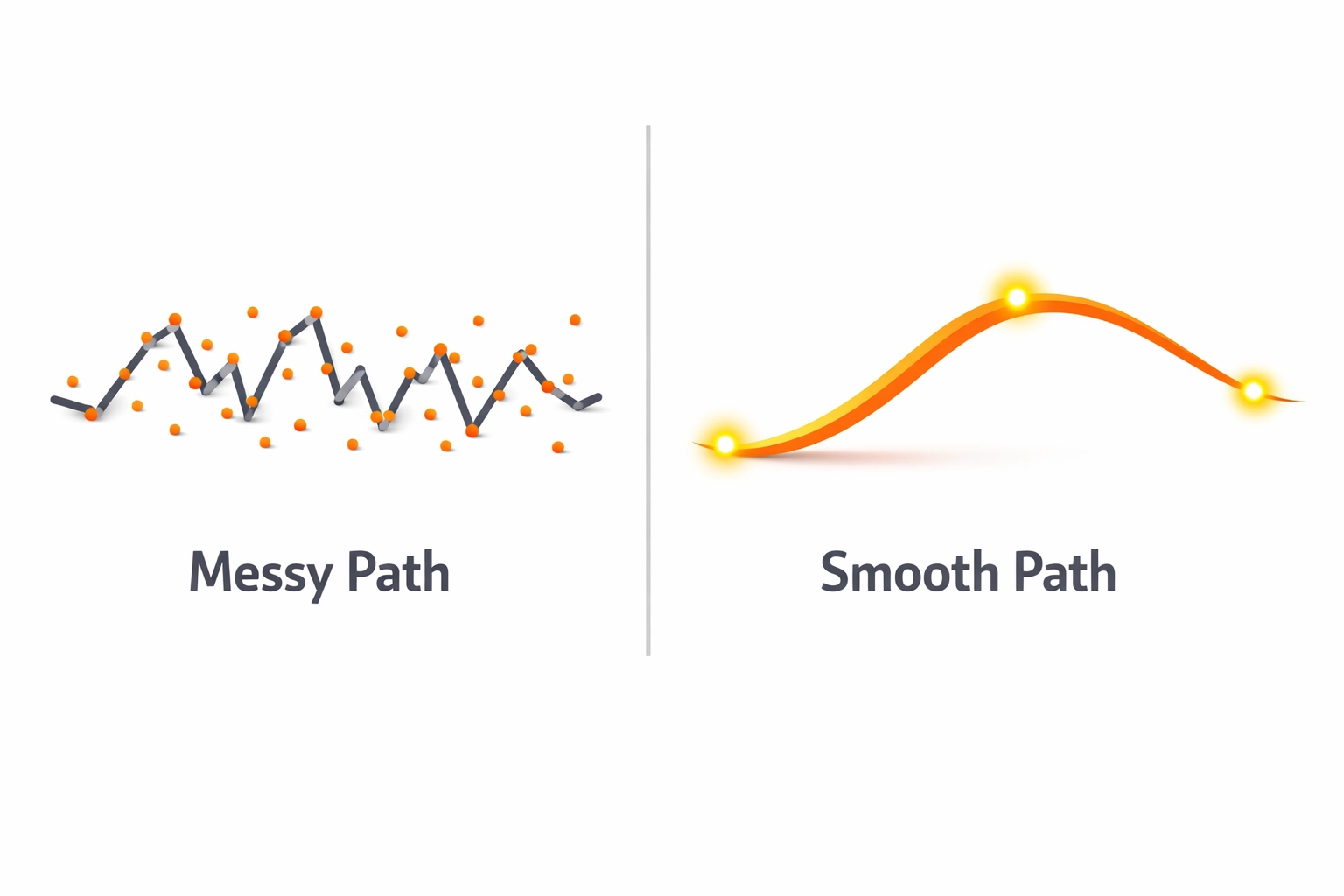
Every anchor point in a vector file represents a coordinate that the RIP must calculate. A design with an excessive number of points, often referred to as "point heavy" or "dirty" vectors, requires significantly more processing power. This is common in files that have been auto-traced from low-resolution bitmaps or created with complex brush tools. A single logo should not contain thousands of points when a few dozen would suffice to maintain the same shape.
The "Simplify" tool in Adobe CC or the "Smooth" tool in Affinity Designer are essential for reducing point density without compromising the visual integrity of the design. Aim for a maximum of 2,000 anchor points per color layer. Reducing these points minimizes the directional changes the RIP must communicate to the print head or cutting carriage. This results in smoother curves, faster RIP times, and faster physical output. When files are optimized this way, technical workflows for complex brands like Royal Beauty Natural Hair Skin run much more efficiently through the production pipeline.
4. Optimize Line Thickness and Scale Standards
Precision in line weight is a technical requirement that varies based on the printing method. If a vector line is too thin, the RIP software may fail to detect it, or the printer may be unable to reproduce it accurately. For professional print production, a minimum line width of 0.06 inches or 0.5 points is generally recommended. This ensures that the RIP generates enough raster data for the print head to lay down a solid line of ink.
When preparing files for large format or plot printing, the physical dimensions of the vector artboard should also be optimized. Working at a 1:1 scale is preferred for most small to medium projects, but for massive signage, working at 1:10 scale with high-resolution settings is a common industry practice. Keeping the overall vector design within manageable dimensions prevents the RIP from encountering memory allocation errors. Consistency in scaling is a core part of the design theory we apply to ensure that digital brilliance translates perfectly to physical reality.
5. Standardize File Formats and Color Modes
The final step in optimization is selecting the correct file format and color profile. While many designers work in RGB for screen display, professional print production requires CMYK. If a file is sent to the RIP in RGB, the software must perform a color conversion on the fly. This adds an extra layer of processing and can lead to unpredictable color shifts. By converting to the destination CMYK profile (such as GRACoL or SWOP) before saving, you take control of the color output and reduce the work required by the RIP.
The preferred formats for vector production are EPS and PDF/X-4. The PDF/X-4 format is particularly robust because it supports transparency and layers while maintaining a standard that is widely compatible with modern RIP engines like Onyx, Fiery, or Roland VersaWorks. EPS is still a reliable standard for simpler vector graphics and plotter software. Avoid saving vectors as high-resolution JPEGs or PNGs unless the project specifically requires raster data, as this loses the mathematical scalability of the original vector and increases the file size unnecessarily. For more information on how we manage these technical standards, you can visit the Creative Design Hub (84G) homepage.

RIP Software Comparisons and Technical Workflows
Choosing the right RIP software is just as important as file preparation. Different engines handle vector data with varying degrees of efficiency.
- Onyx Thrive: Known for its heavy-duty processing capabilities, Onyx excels in wide format environments where multiple printers are running simultaneously. It handles complex PDF files with ease but requires significant hardware resources.
- Fiery Command WorkStation: Often used in digital press environments, Fiery is highly efficient at processing color-critical vector work and offers advanced job management features.
- Roland VersaWorks: A more specialized tool for Roland equipment, it is optimized for "Print and Cut" workflows. It handles spot colors and specialty inks (like white or gloss) very efficiently if the vector files are set up with the correct technical swatches.
Implementing these five steps creates a standardized workflow that minimizes downtime. When files are flattened, outlined, simplified, and correctly formatted, the transition from design to physical product is seamless. This technical discipline is what separates hobbyist output from professional grade print production. Whether you are working on a project for Nurse Ed 101 or creating custom branding for Chermanye Jackson, the efficiency of your RIP process starts with the quality of your vector file.
Works Cited
Adobe. (2024). Optimize files for print in Illustrator. Adobe Help Center. https://helpx.adobe.com/illustrator/using/printing-and-saving-artwork.html
International Color Consortium. (2025). CMYK vs RGB for Professional Print Workflows. ICC Standards. https://www.color.org/icc_specs2.xalter
Onyx Graphics. (2023). Maximizing Throughput with Efficient File Preparation. Onyx Technical White Papers. https://www.onyxgfx.com/support/white-papers/
Printing United Alliance. (2025). RIP Software and Digital Front Ends: A Comparison Guide. Print Power Magazine. https://www.printing.org/resources/technical-guides/rip-comparison
Roland DGA. (2024). Vector Optimization for Print and Cut. Roland Knowledge Base. https://www.rolanddga.com/support/knowledge-base/vector-prep
Recent Comments